.png)
mTuitive Pathology Standalone System User Guide
The intended audience for this user guide is a someone using the mTuitive Pathology standalone web system (not integrated with a Lab system such as: Oracle PathNet, Meditech Expanse, Epic Beaker, etc.) with an mTuitive database, using the https://pathology.mtuitive.com URL to launch mTuitive.
- Launching mTuitive Pathology & Starting a Synoptic Report
- Starting a New Report
- Answering Report Protocol Questions
- Required Questions
- Navigating Between Questions
- Report Menu Operations
- Completing the Report
- Copying the Report to the Lab System Pathology Report
- Submit
- Additional CAP Protocol Information
Launching mTuitive Pathology & Starting a Synoptic Report
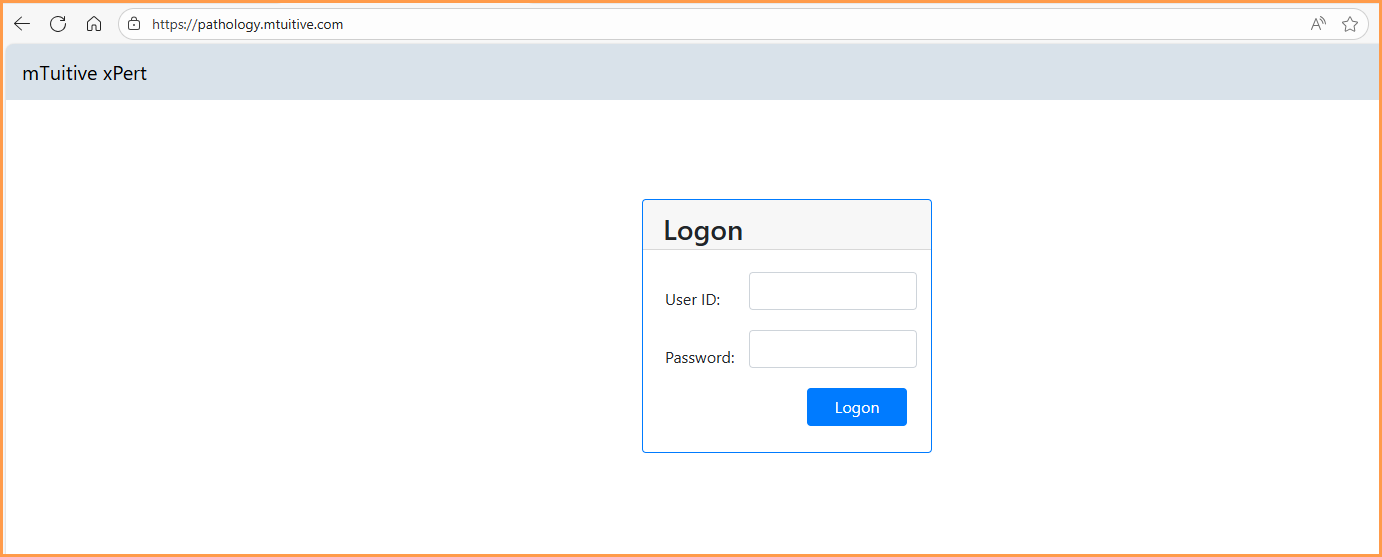
Launching a session in mTuitive Pathology is easy to do:
- Launch any Internet web browser (Chrome, Microsoft Edge, Firefox, etc...)
- Navigate to: https://pathology.mtuitive.com
- Once there, enter the username and password provided by mTuitive
- Press the Logon button
Starting a New Report
To start a new report:
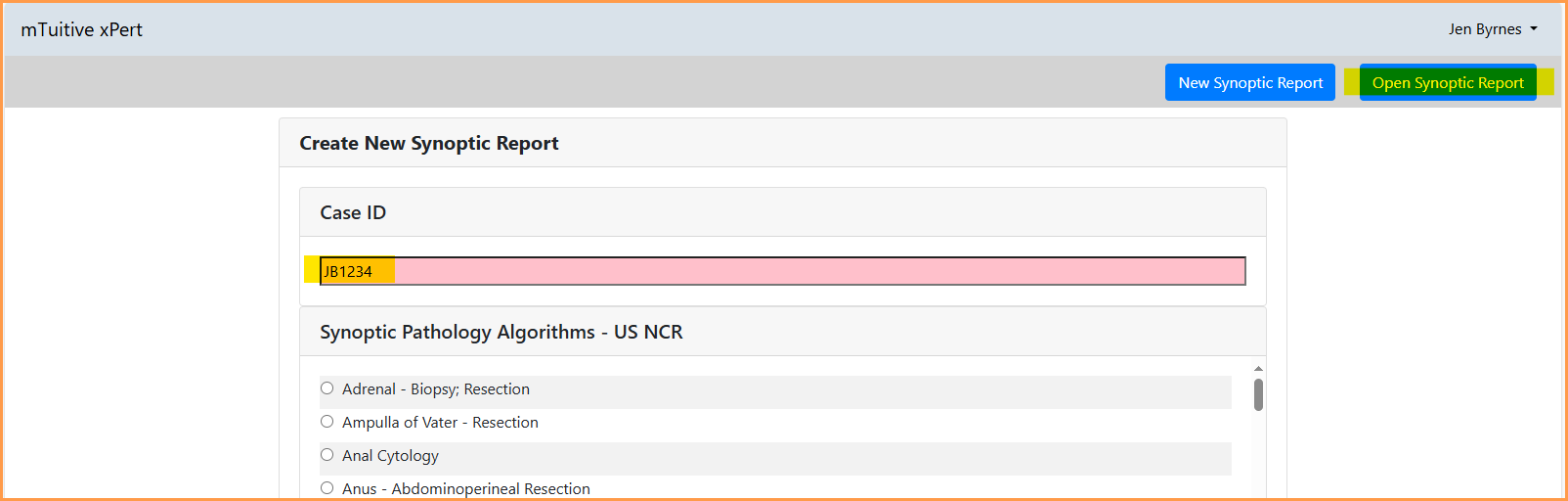
- Enter a new Case ID, to track the new report about to be created
- Press the radio button next to the desired protocol
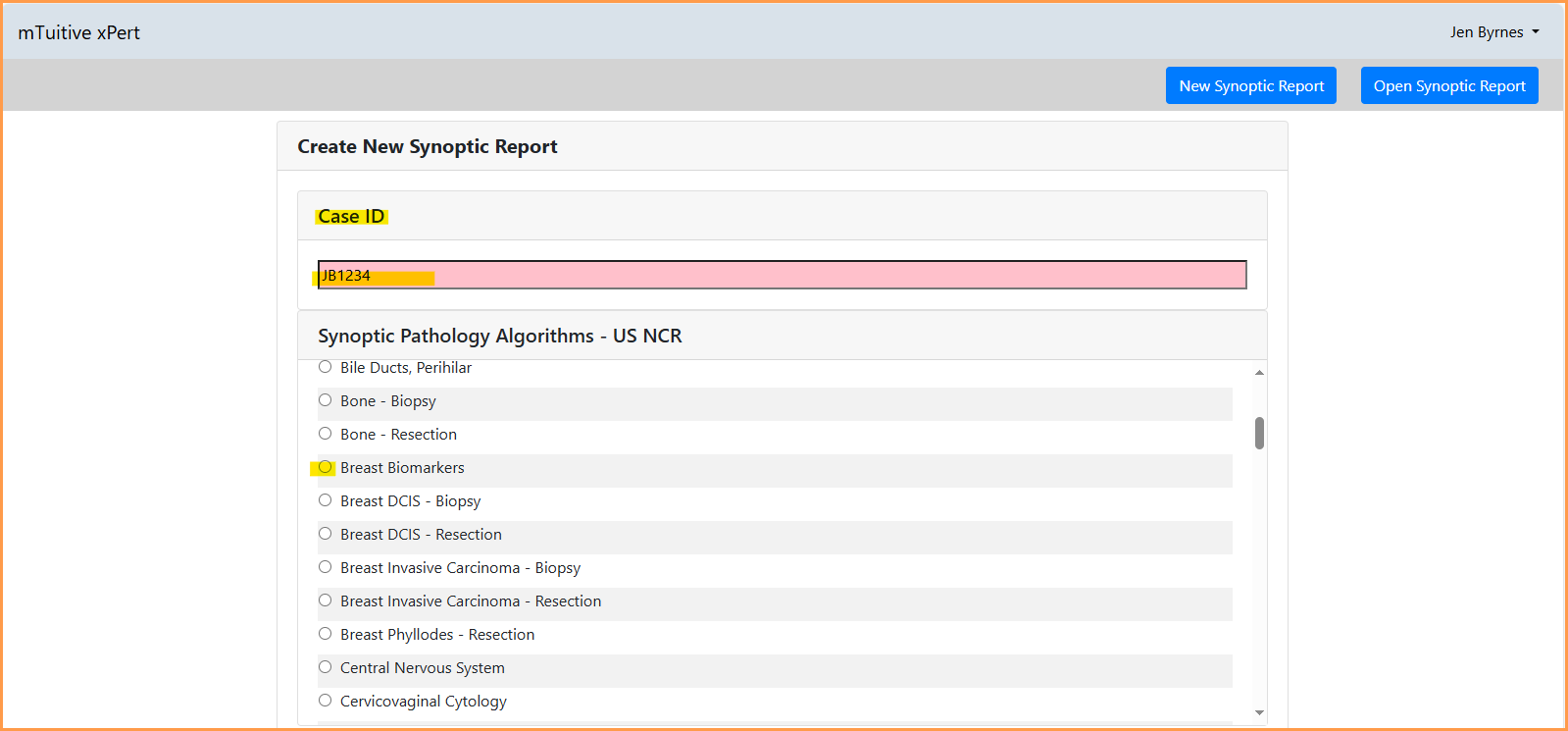
- A blank report for the specified protocol opens up
Answering Report Protocol Questions
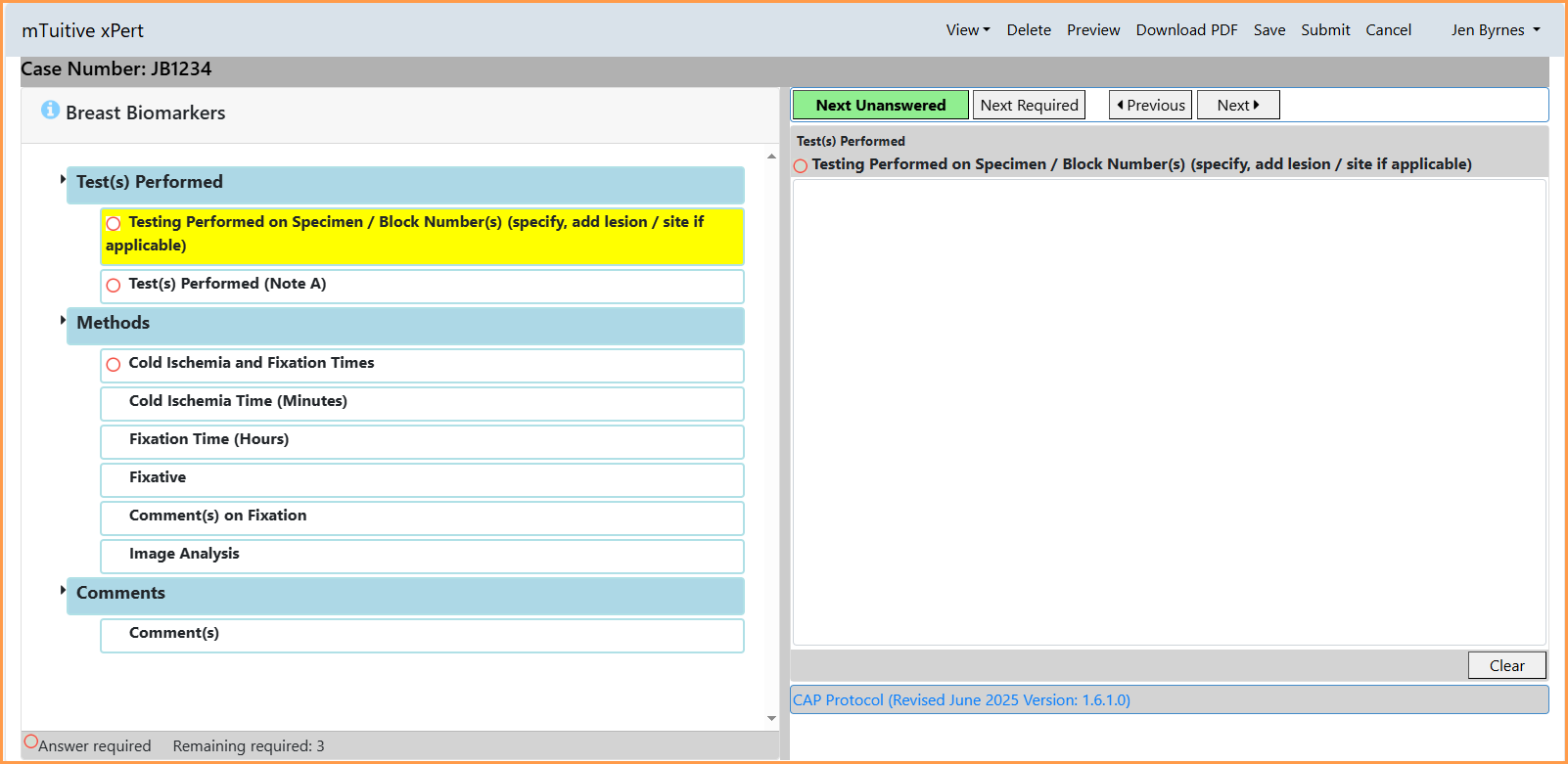
Goes through each question to select or type relevant responses, then moves on to the next field until the report is completed.
Question/fields Types:
- Multiple Choice - Single Select
- Multiple Choice - Multiple Select
- Text fields
- Number fields
Required Questions
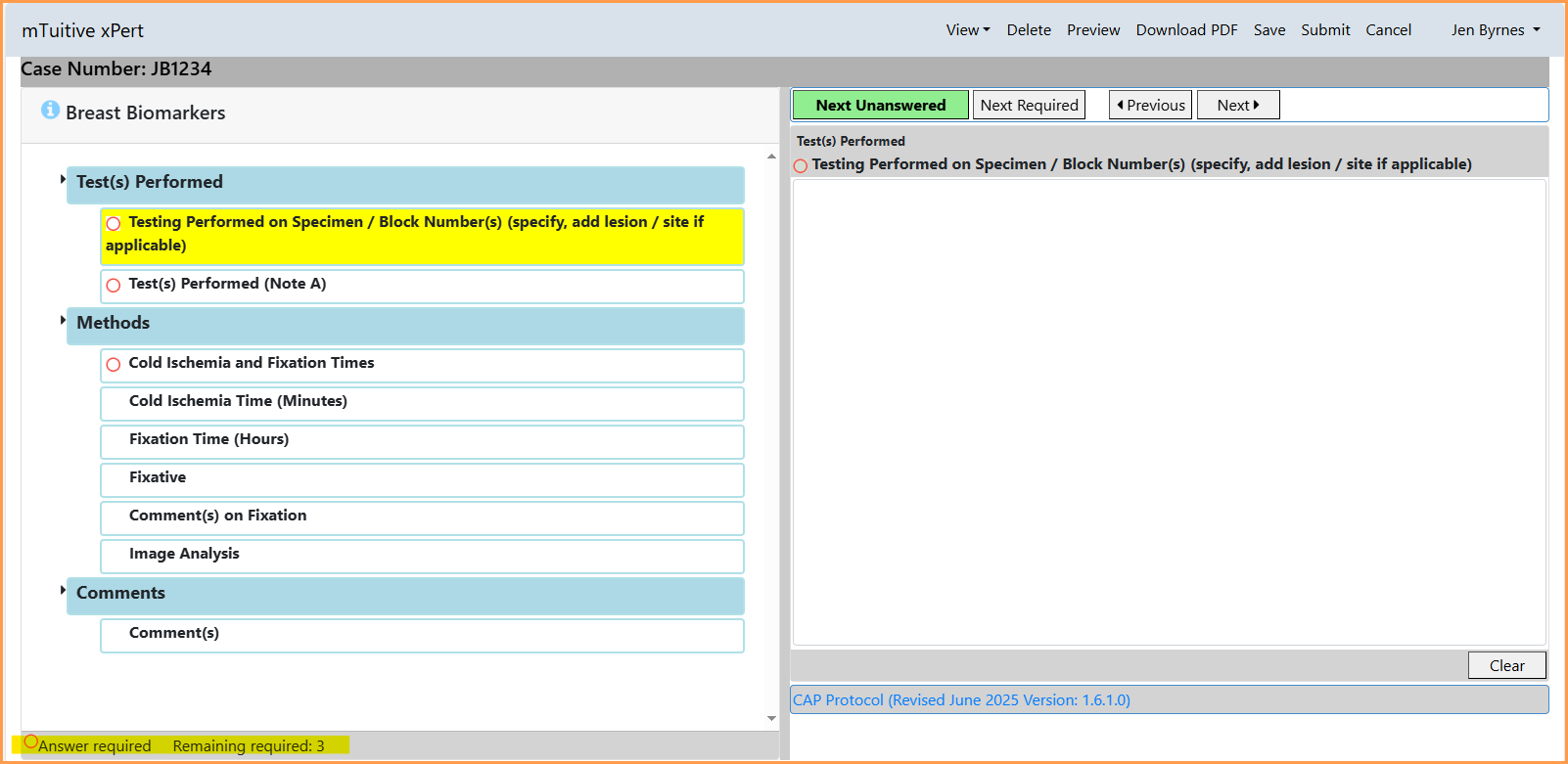
Fields denoted with a red circle are questions required to be answered by the College of American Pathologists (CAP), in order to meet the Commission on Cancer standards. The number of required questions remaining unanswered are displayed on the bottom-left corner of the screen. This number will increase or decrease, depending on how previous questions are answered.
Navigating Between Questions
Navigation Buttons
On the right-side of the screen, where responses are entered, are buttons used for navigating through mTuitive Pathology
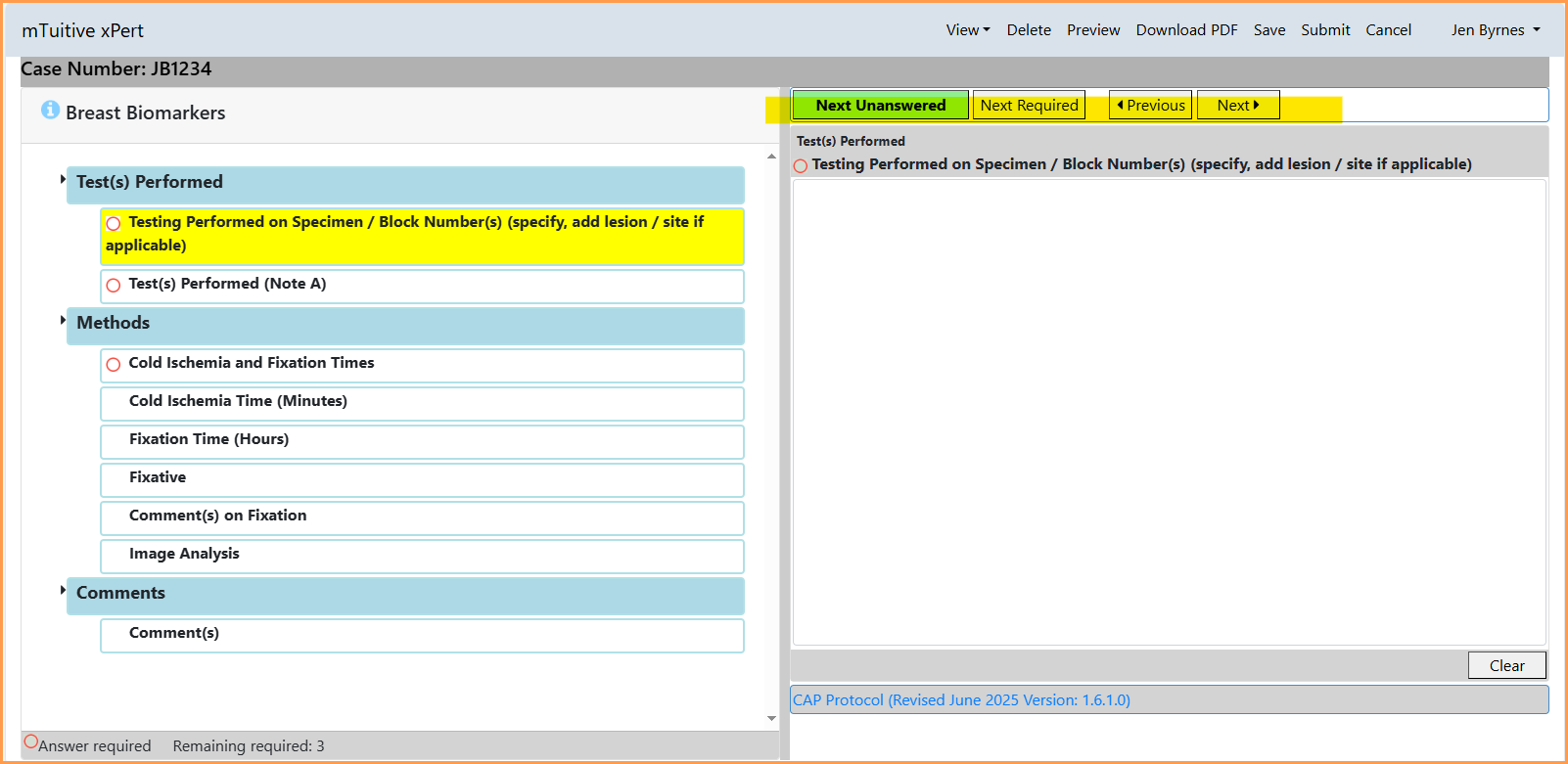
- Next Unanswered: Brings you to the next question that doesn't have a response, skipping over any questions that have already been answered.
- Next Required: Skips to the next required question, allowing the user to focus only on those required questions to meet standards.
- Previous: Brings the user back to the previous field - no matter if it was answered, required or anything else; it takes you to the field preceding the one the user is currently in.
- Next: This navigates the user to the next field, again, regardless if it is answered or required, it just takes the user to the next field in the protocol.
User View (Tab Default)
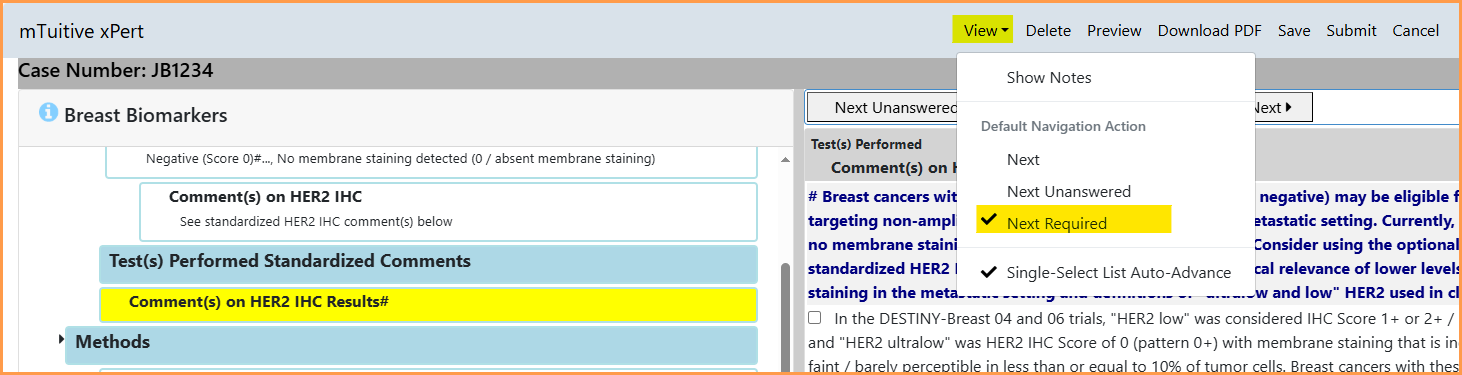
If using the Tab key to navigate through the questions, the default navigation method can be changed by:
- Selecting View in the top menu bar
- Select the desired Default Navigation Action
Single-Select List Auto-Advance
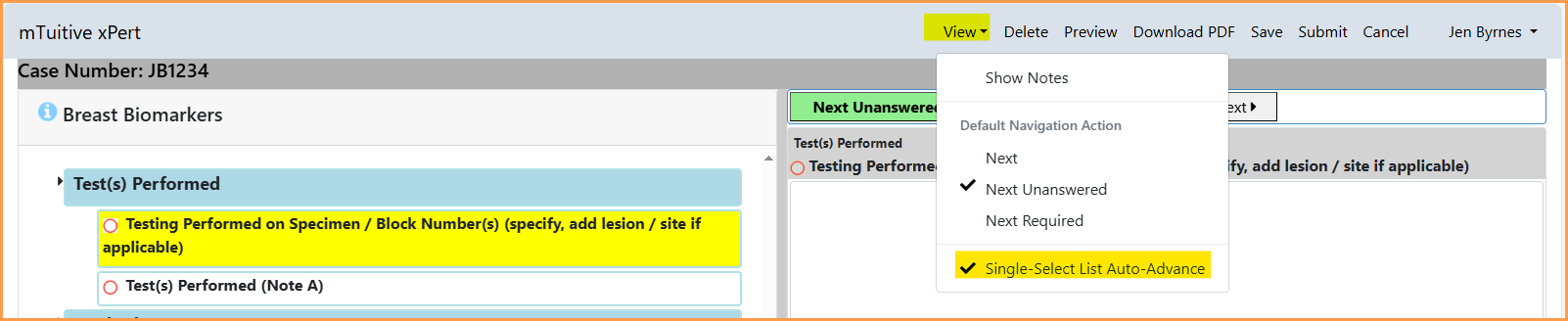
If the optional Single-Select List Auto-Advance setting is enabled, once a question is answered the report will automatically advance, based on the Default Navigation Action, to the next question. This helps expedite the reporting process as navigation moves to the next section without having to manually hit the Next button or Tab key.
To enable this feature, select View from the top menu bar, and select Allow Single-Select List Auto-Advance:
Report Menu Operations
Previewing the Report
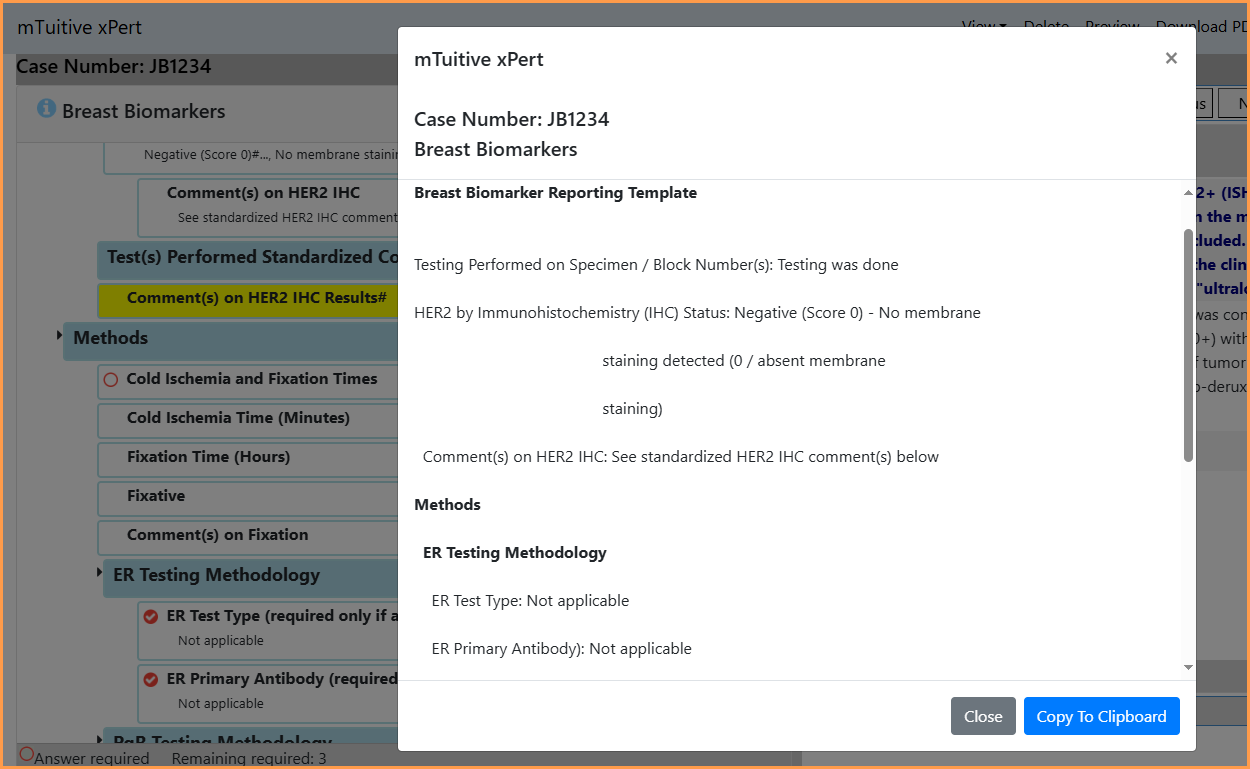
To see what the current filled in report will look like:
- Select Preview from the top menu bar

- A pop-up window will display that displays the current synoptic report as how it will look printed out
Saving a Report
A report can be saved and completed at a later time to review, complete, and submit.
To save a report:
- From the menu tool bar at the top of the report window, select the Save option

View Or Edit a Previously Saved Report
To go back into a previously Saved report:
- Log into mTuitive Pathology
- Enter the Case ID of the desired report previously created
- Press the Open Synoptic Report button
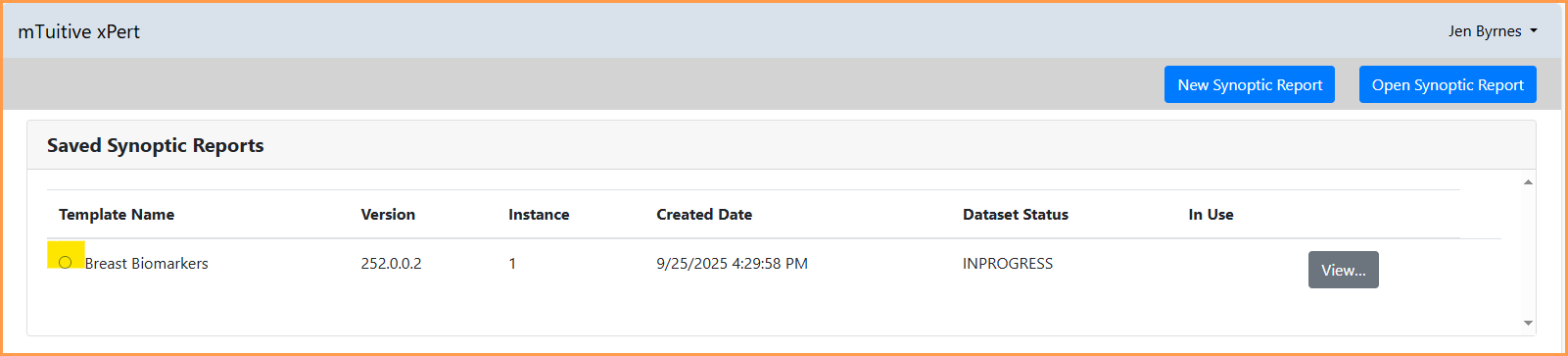
- Details of the report will display: Template Name, Version, Instance, Created Date, and Dataset (Report) Status.
- View or Edit report:
- View: Select the View button to preview the report that has been built so far
- Edit: Select the radio button next to the desired report to continue updating
Cancel
To cancel an unsubmitted report:
- Press the Cancel from the top menu bar

- The following pop-up message will display:
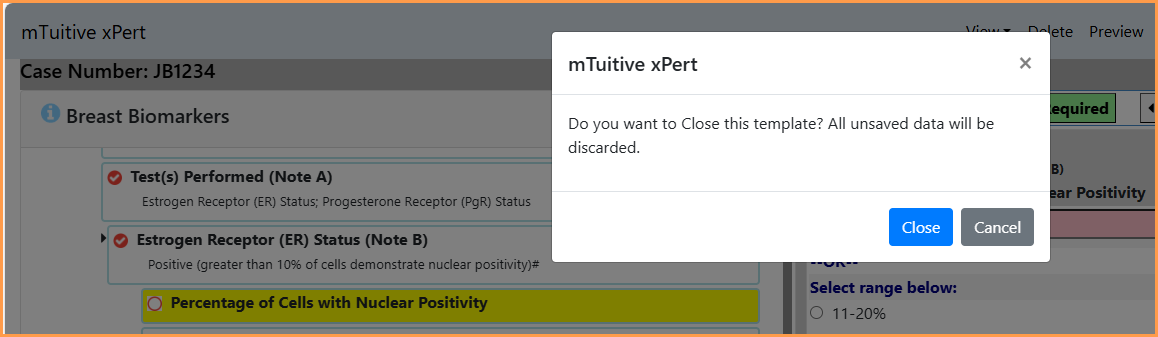
NOTE: Selecting the Close button will result in:
- All unsaved data will be discarded and lost
- All previously saved data will remain in the report
Delete
To delete the current report:
- Select the Delete button from the top menu bar

- The following pop-up message will display:
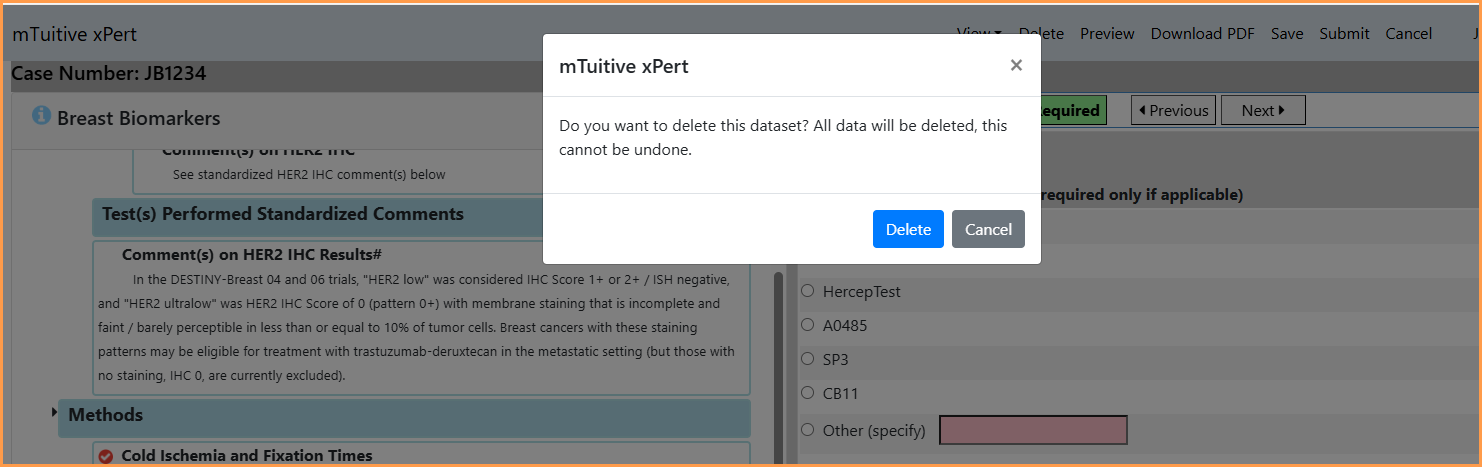
CAUTION: Pressing the Delete button will result in the ENTIRE REPORT being removed and deleted from the mTuitive database and cannot be recovered.
Completing the Report
A report is considered complete when all Required questions have been answered.
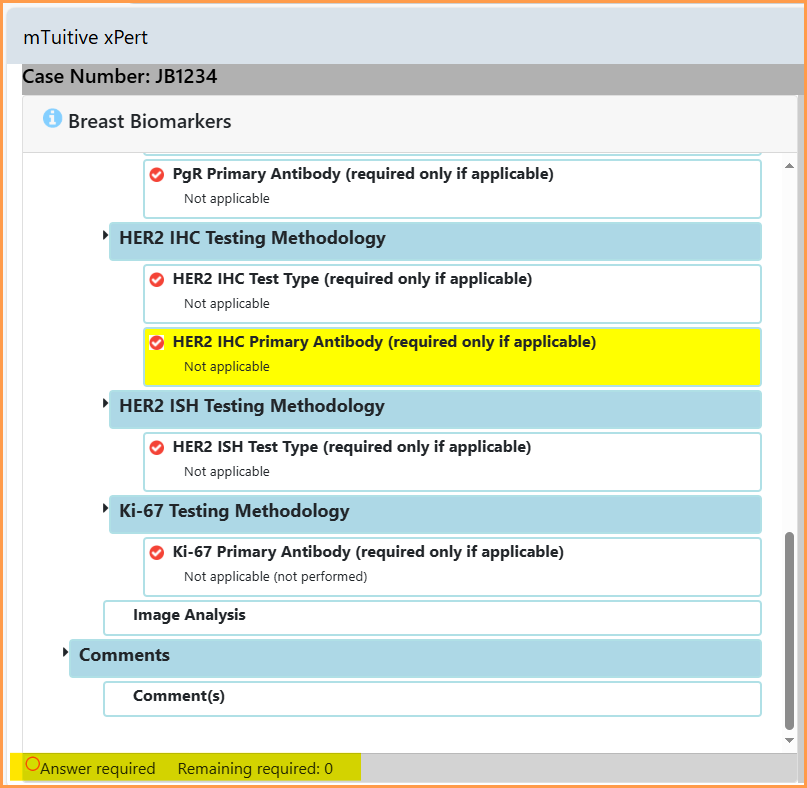
Use the Preview option to review the completed report.

Copying the Report to the Lab System Pathology Report
The completed mTuitive Pathology synoptic report can be added to a text-based Pathology Lab report (e.g. many use a Microsoft Word as a text editor) or anything other than a PDF.
The preview contains a Copy To Clipboard button which can be used to copy and paste the mTuitive report into the Pathology Lab report.
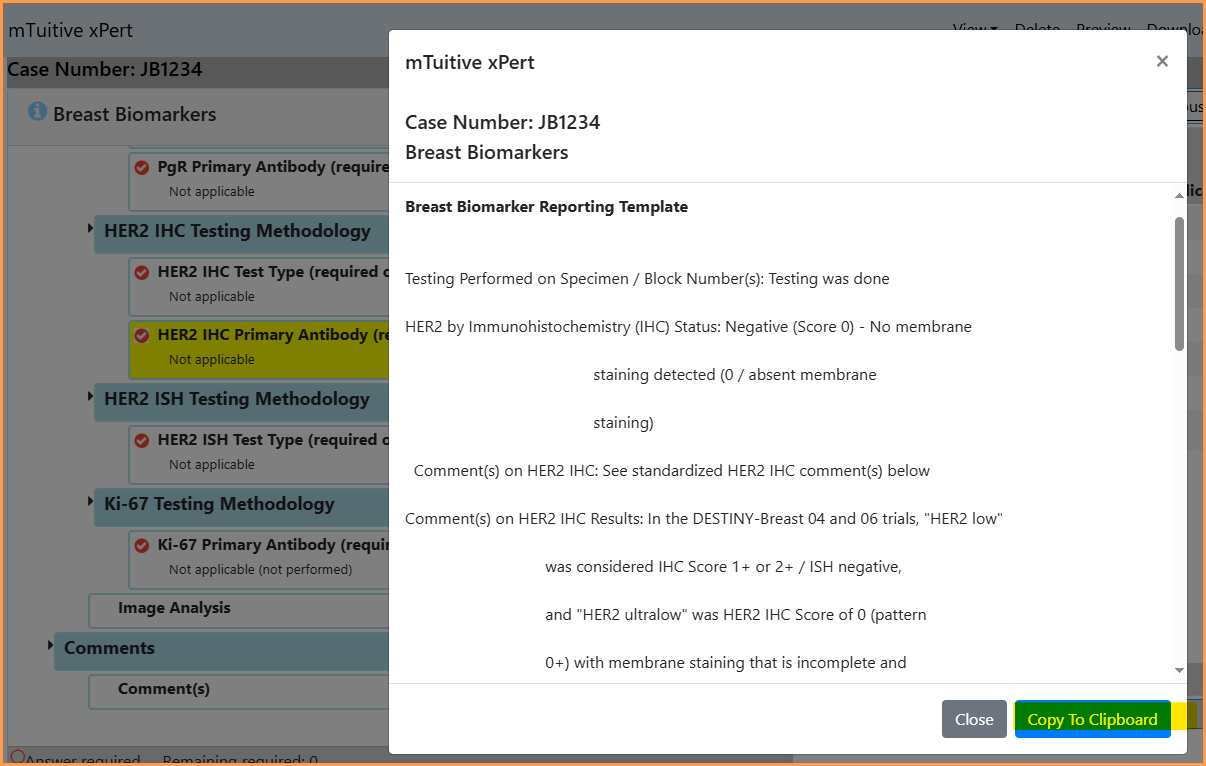
Once the report is pasted into the final Lab report, select Close to close the window.
Submit
To finalize the report to the mTuitive database:
Press the Submit button

Additional CAP Protocol Information
If at any time there is a question surrounding the version of the CAP protocol being used, there is a hyperlink at the bottom-right corner of each question that displays the version and date of revision.
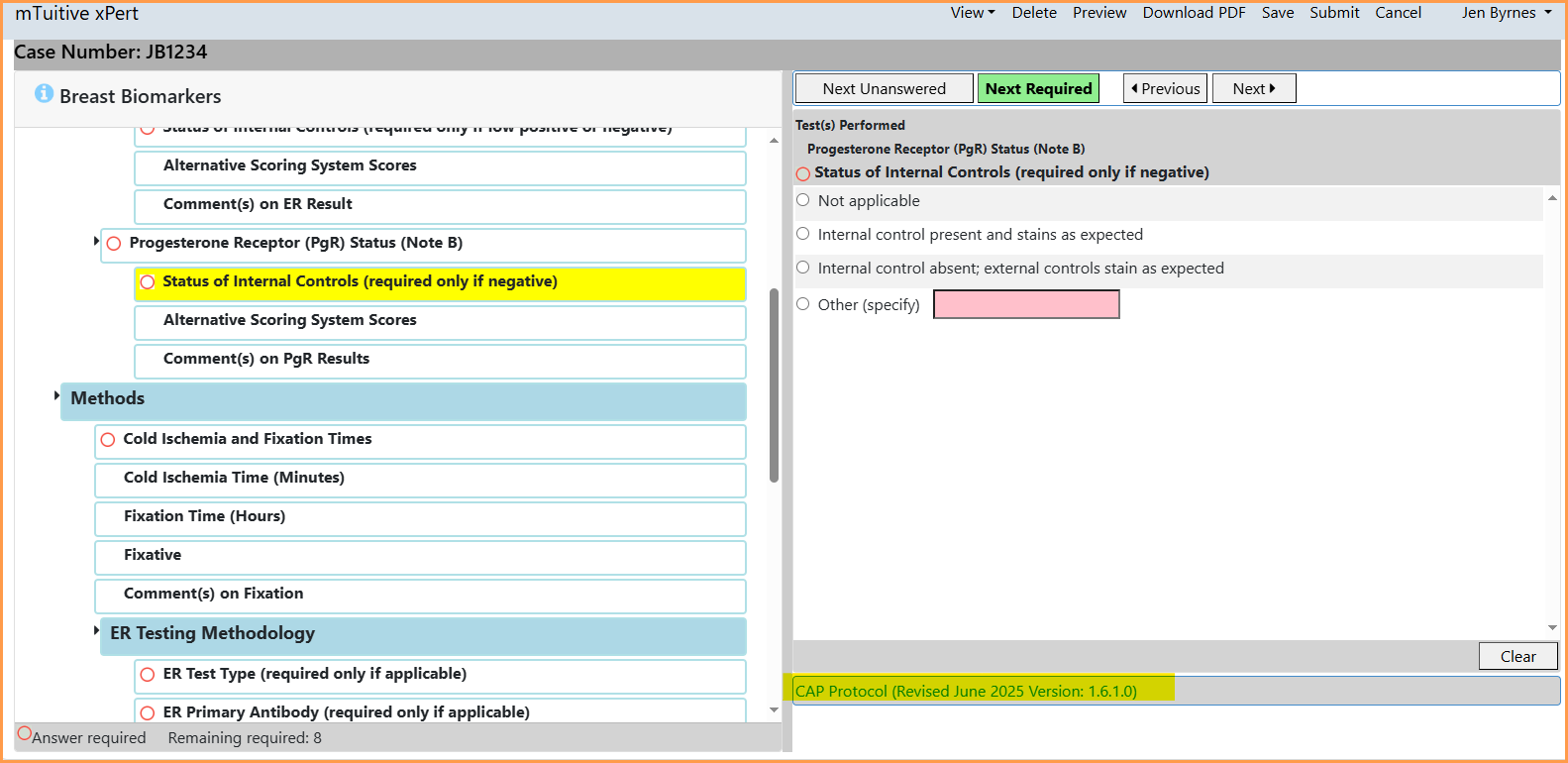
Selecting the hyperlink will open a separate web browser and display the CAP PDF Protocol for viewing.